SMS Messaging Terms
Effective date: June 4, 2026 · Last updated: September 29, 2026
Program Description
Paxly operates two SMS programs:
- Solo Mode — delivers co-parenting communications via a dedicated proxy phone number. Messages may include calendar events, expense notifications, and general co-parent messages routed through the Paxly platform.
- Account notifications — texts a Paxly user about activity in their own account, such as new or changed calendar events, expenses and reimbursement requests, reminders, and new co-parent messages. Each message links back to the app. No marketing messages are sent.
Account Notification Texts
Account notification texts are off by default. To turn them on, a signed-in Paxly user opens Account → Notifications on the web or Account → Notification settings in the mobile app, enters their own mobile number, and must check an unchecked-by-default consent box before a verification code can be sent. The checkbox reads:
“I agree to receive Paxly account notification texts (calendar, expense, reminder, and message alerts) at this number. Msg frequency varies. Msg & data rates may apply. Reply HELP for help, STOP to opt out. Consent is not a condition of purchase.” (with links to the SMS Terms and Privacy Policy)
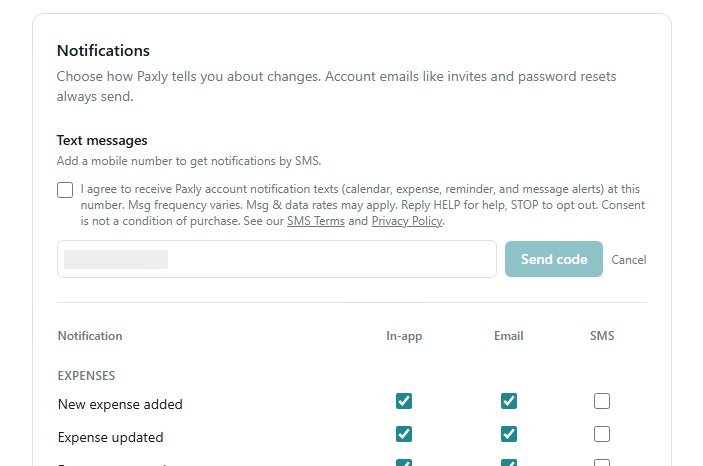
Paxly then texts a one-time verification code to that number. The user must enter the code in the app to confirm they own the number; texts are only sent after verification. Once verified, Paxly sends this confirmation:
“Paxly: You're subscribed to Paxly notification texts. Msg frequency varies. Msg & data rates may apply. Reply HELP for help, STOP to opt out.”
After verification, the settings screen shows the number as verified and the SMS column becomes available:
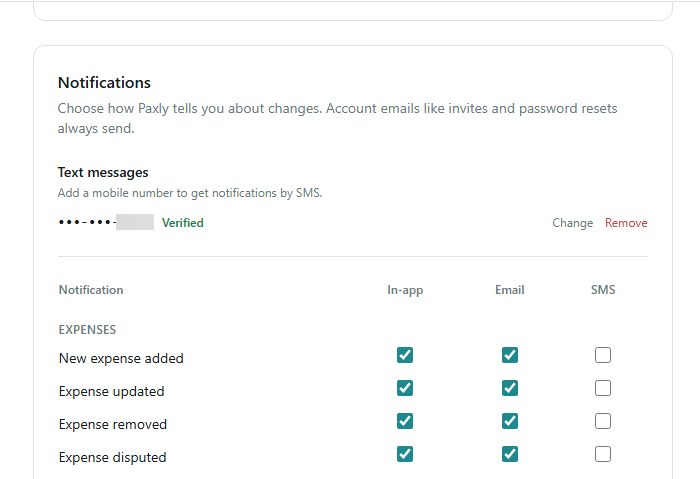
The user chooses which notification types to receive by text and can change those choices, remove their number, or turn texts off at any time in the same settings screen. Only US and Canadian mobile numbers are supported.
Subscriber Setup
The Paxly user who initiates Solo Mode enters their co-parent's phone number and confirms the following disclosure before activating:
“By providing your co-parent's phone number, you confirm that they have agreed to receive text messages from Paxly's proxy number, including custody schedule coordination, shared expense notifications, and general co-parenting communications, at a frequency of up to 100 messages per month. Message and data rates may apply. They can reply STOP to opt out at any time.”
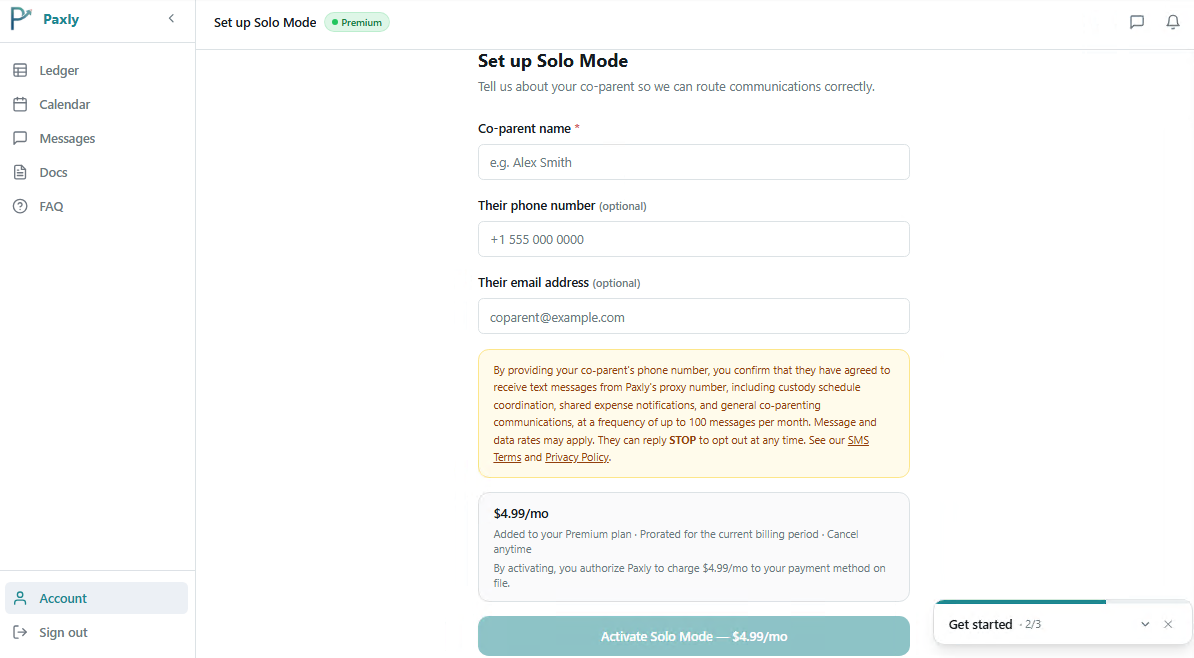
The subscriber must acknowledge this disclosure and click Activate Solo Mode before any invitation is sent or messages are routed.
How to Opt In (Solo Mode)
You are enrolled in Paxly SMS when a registered Paxly user enters your phone number during Solo Mode setup. Paxly sends you an invitation SMS explaining that messages will be routed through Paxly's proxy number and may include custody schedule coordination, shared expense notifications, and general co-parenting communications, at a frequency of up to 100 messages per month. Msg & data rates may apply. You explicitly opt in by replying YES. No messages are routed through the proxy until your consent is confirmed.
How to Opt Out
Reply STOP to any Paxly message to unsubscribe. You will receive one confirmation message and no further texts will be sent to your number.
Help
Reply HELP for assistance, or email [email protected].
Message and Data Rates
Message and data rates may apply. Solo Mode message frequency is up to 100 messages per month. Account notification frequency varies with activity in your account and the notification types you turn on.
Privacy
Mobile numbers and SMS opt-in consent are never shared with or sold to third parties or affiliates for marketing purposes. For information on how Paxly collects and uses your data, see our Privacy Policy.